
The Trustless Operating System for sovereign computing.


Getting started with NONOS is easy and free. You can either download the OS and create your own bootable USB or purchase an official pre-loaded NONOS USB drive for plug-and-play convenience.
Follow the steps below to start your journey toward a safer computing experience:
Visit our official download page (on the NONOS website) and grab the latest NONOS OS image file. It’s a single download (a few gigabytes in size). The file is provided as an ISO/IMG that contains the entire operating system.
We also provide checksums and a digital signature so you can verify the file’s integrity, an important step to ensure you got an authentic copy.
If you’re making your own NONOS stick, you’ll need a blank USB flash drive (8 GB or larger recommended). Using a tool such as balenaEtcher, Rufus (for Windows), or the built-in Disk Utility (for macOS), write the NONOS image to your USB drive.
This process will wipe the USB and turn it into a bootable NONOS disk. Detailed instructions for various operating systems are available on our documentation (with screenshots to guide you).
Essentially, it’s as simple as selecting the NONOS image file and the USB drive in your chosen tool, then clicking “Flash.”
Once your USB is ready, insert it into the computer you want to use NONOS on. Reboot the machine. During startup, you may need to press a key (often F12, Esc, or Del depending on the PC) to access the boot menu. From there, choose the USB drive to boot.
After a moment, you’ll see the NONOS loading screen, congratulations, your secure session is starting! You don’t need to install anything on the PC’s hard drive; NONOS will run directly from the USB and memory.
(If the computer boots to its normal OS instead, you might need to adjust the BIOS/UEFI settings to enable USB boot, our guide covers how to do that as well.)
NONOS is designed to be user-friendly. On first boot, it may ask you to select basics like your language, timezone, and create an optional encryption password if you plan to use persistent storage on the USB.
These steps only take a minute. After that, you’ll land on the NONOS home screen and can begin using the secure OS immediately. The interface will feel familiar (with a desktop, browser, etc.), so you can jump right into browsing or other tasks in this safe environment.

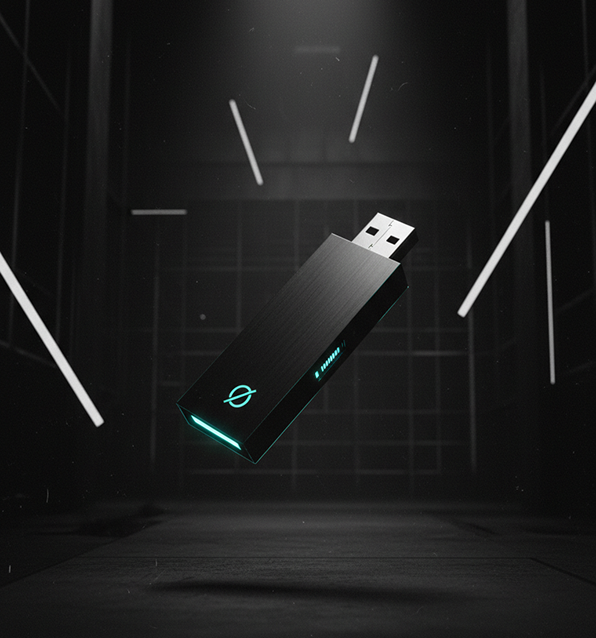
To simplify things, you can order an official NONOS USB device from our store. This is a high-quality, encrypted USB stick that comes pre-flashed with the latest NONOS OS. Just plug it in and boot, no setup required.
The official drive also includes a built-in secure element for extra protection (ensuring the OS image hasn’t been tampered with).
It’s a great option if you’re less comfortable with flashing images or you want a professionally tested device for critical use.
NONOS runs on most modern 64-bit PCs (x86_64 architecture). You’ll need a machine that can boot from USB (almost all PCs can). We recommend at least 4 GB of RAM for smooth performance.
NONOS doesn’t demand a powerful processor or dedicated graphics, if your computer can run Windows 10 or a modern Linux distro, it should run NONOS just fine.
There’s no need for a hard disk (unless you enable optional persistent storage), since the OS primarily uses RAM.
Once you have NONOS up and running, you can reboot into your regular OS anytime by simply removing the USB and restarting.
You retain full control, NONOS doesn’t overwrite or interfere with your existing system. It’s there when you need it, gone when you don’t.
Download NONOS today and experience computing with confidence.
The power to secure your digital life is now literally in your hands (or in your pocket on a USB stick)!

The Trustless Operating System for sovereign computing.