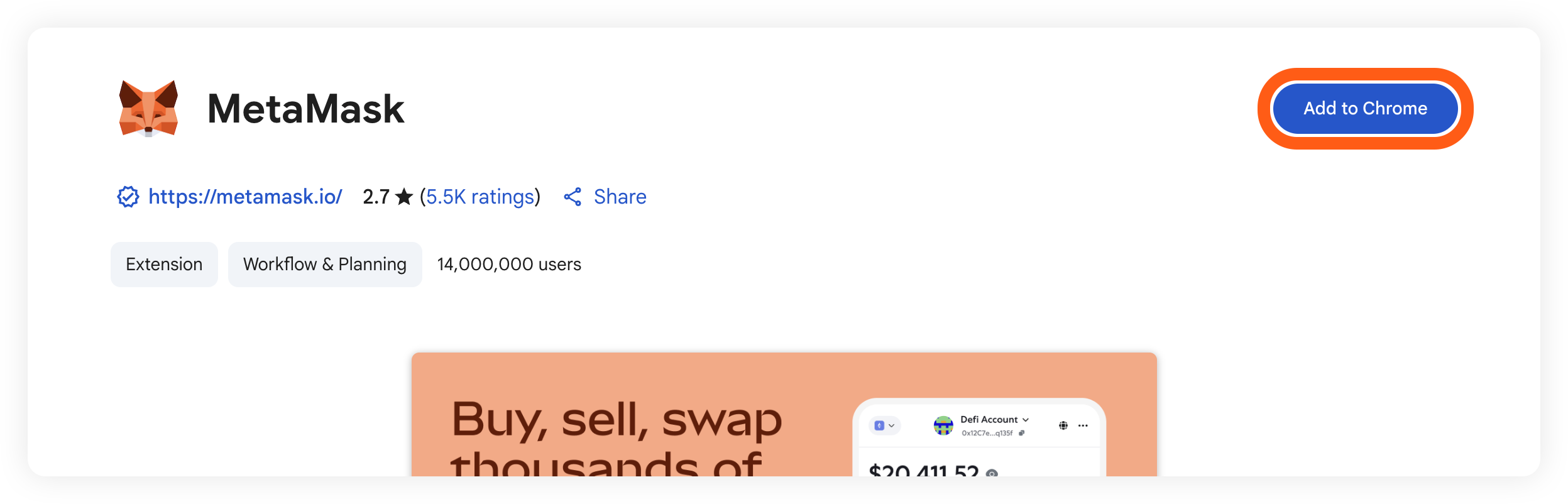
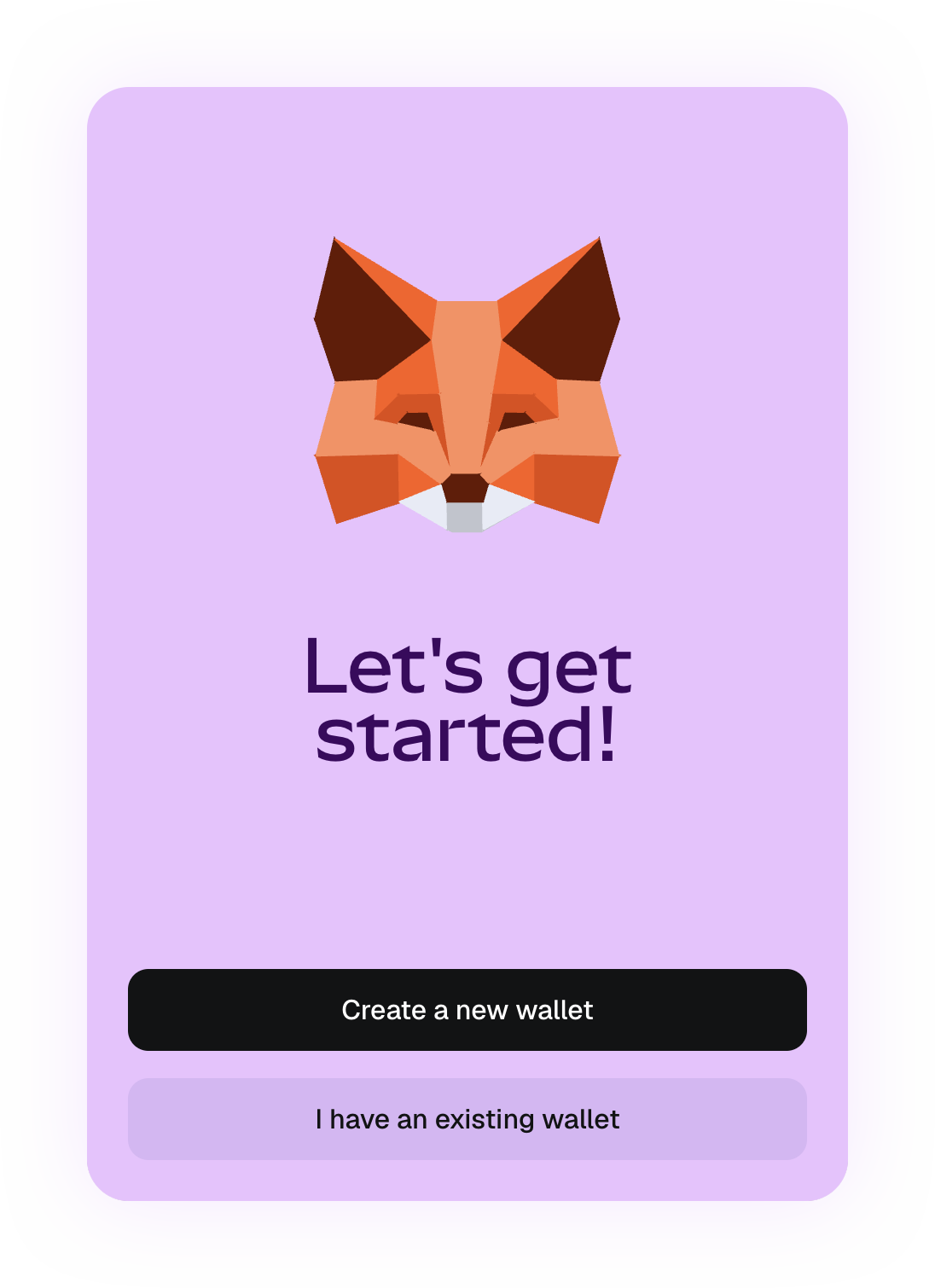
Open MetaMask and create a wallet, or use an existing one. Follow its recovery and password setup for your chosen sign-in method.
Keep recovery material private and complete the backup process before adding funds. Only enter an existing recovery phrase inside the official wallet’s own recovery flow. This guide and the NONOS website never need it.
In MetaMask, select Ethereum and find your receiving account address. Transfer ETH to that address using Ethereum mainnet, or use an available purchase provider from MetaMask.
Provider availability, charges and identity checks vary. Verify the destination and network, and allow the transfer to complete. Keep enough ETH aside for any network fees shown when you swap.
The receiving address is your wallet address. The NOX contract shown in this guide identifies the token; it is not where you send ETH to fund your wallet.
STEP 04 / 09
Connect MetaMask to Uniswap
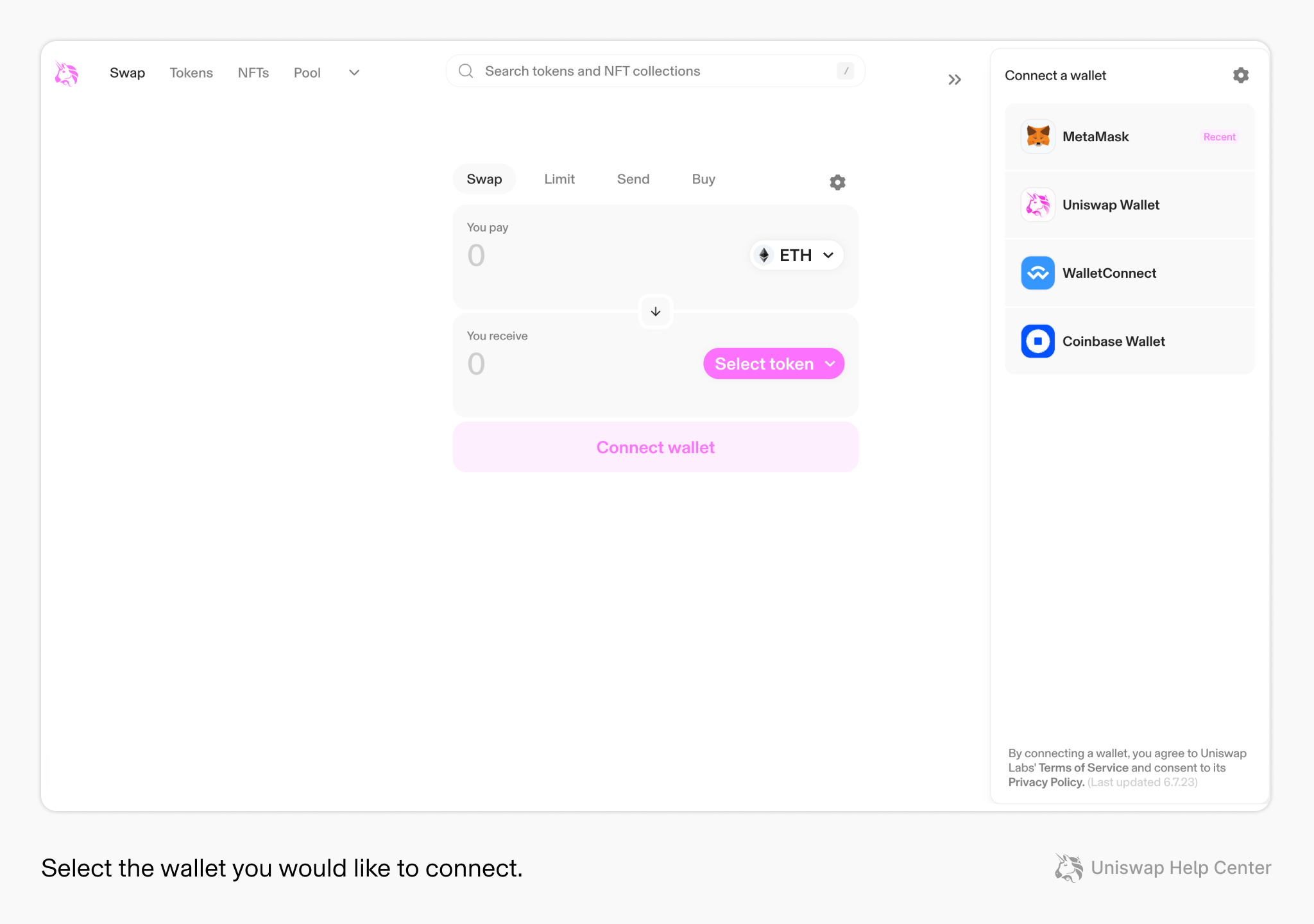
Open app.uniswap.org and select Connect. Choose MetaMask and review the connection request inside your wallet.
On mobile, use a supported wallet connection or MetaMask’s in-app browser. Check that both your wallet and swap use Ethereum. Connecting a wallet is separate from authorising a purchase.
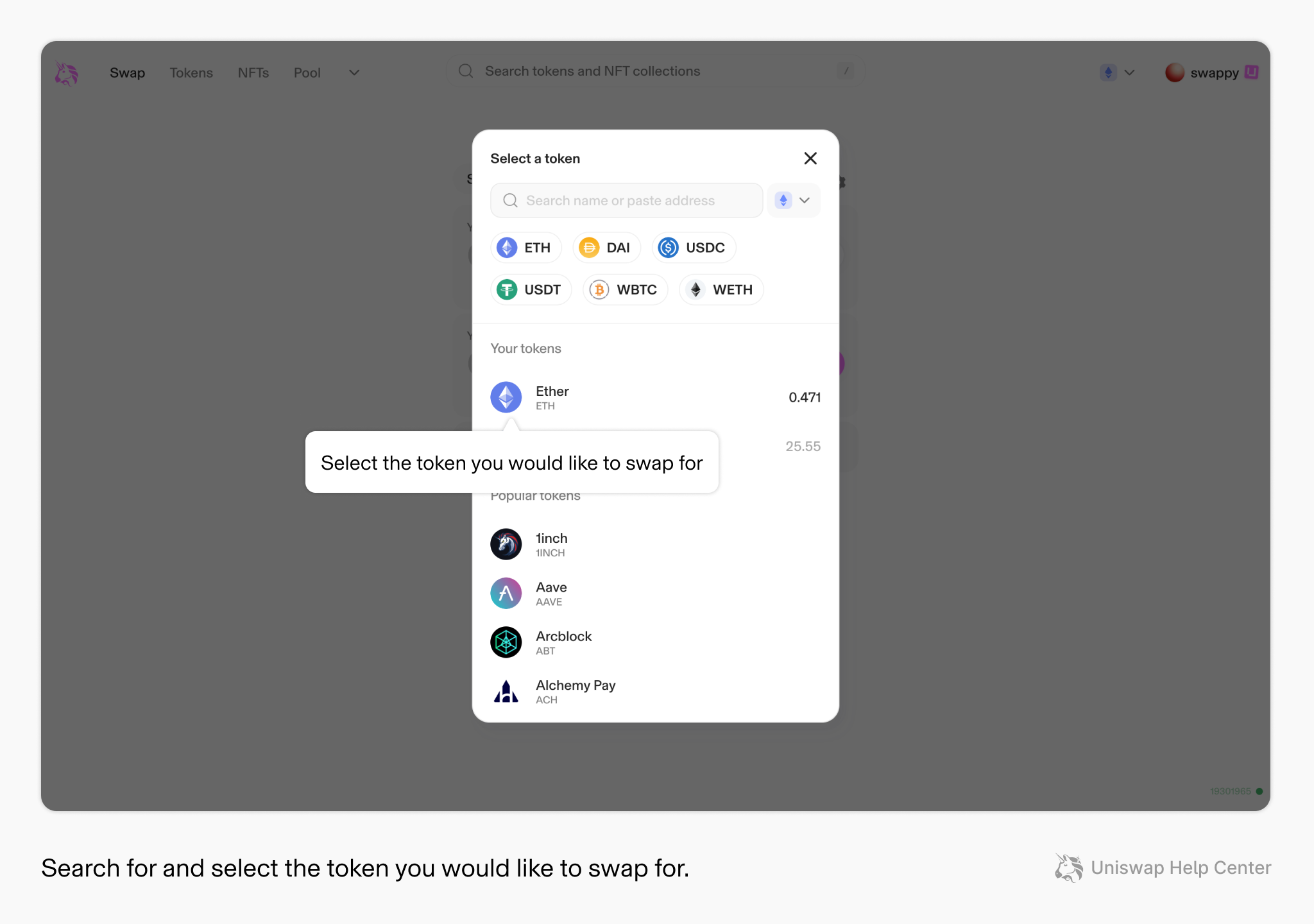
Choose ETH as the asset to pay with. In the receiving-token selector, paste the NOX contract shown in this guide. Verify the complete address and Ethereum network before selecting NOX.
Enter the amount of ETH you want to swap. If no usable quote is available, stop and review liquidity and network selection.
Enlarge screenshot ↗Official Uniswap token selector. Search using the NOX contract in this guide; the example image shows other tokens. Official source ↗
STEP 06 / 09
Read the quote before you approve
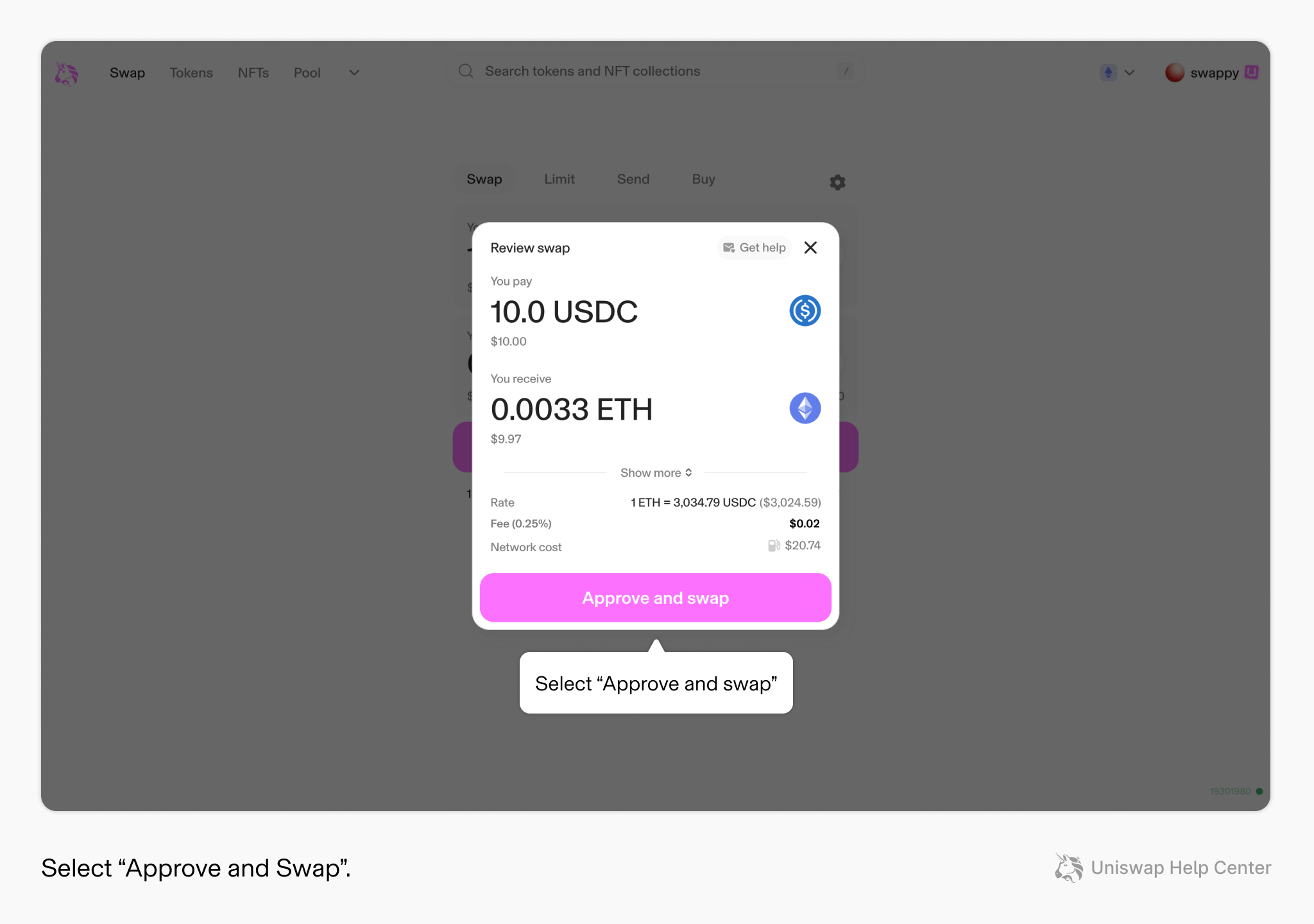
Check the estimated NOX received, price impact, network cost, any displayed service or pool fees, and the minimum amount received.
Review slippage: a higher tolerance permits a worse execution price, while an overly tight setting can cause failure. Do not increase it simply to bypass an unexpected warning. Quotes and costs can change before confirmation.
Enlarge screenshot ↗Official review example using USDC and ETH. Its amounts, fee percentage and network cost are examples, not current NOX pricing or fees. Official source ↗
STEP 07 / 09
Review every wallet prompt
Continue only if the details match your intent. Depending on the asset and route, Uniswap may show a token allowance, permit signature or ETH-wrapping step before the swap.
Review the asset, spending limit, destination and network cost for each request. A connection or approval alone does not complete the purchase. Confirm the swap in MetaMask when you are ready.
Read each request before signing. This guide does not connect a wallet, request a signature, collect a recovery phrase or execute a trade.
STEP 08 / 09
Confirm the result
After submission, wait for confirmation. Open the transaction in the Ethereum explorer from Uniswap or MetaMask and check its status and token transfers to your wallet.
A pending transaction is not a completed purchase. If it fails, review the reason before trying again; do not assume a second submission is required.
Use the transaction hash to check the result. The confirmed token transfer should identify NOX and your receiving wallet.
STEP 09 / 09
Show NOX in MetaMask
If a confirmed NOX balance does not appear, check that you are viewing the same Ethereum account. Open token management and add a custom token using the verified NOX contract.
Review the detected token details, then import it. Importing displays a token balance. It does not buy tokens or move funds.
Cryptoassets can lose value. This guide explains the purchase process; it is not an investment recommendation. Transactions and third-party services remain under your control.
Primary sources & help
Screenshots come from official MetaMask and Uniswap support articles. They are interface examples, may show other assets or historical quotes, and do not establish current NOX pricing or fees. Use the details displayed in your own current wallet and swap session.
 Enlarge screenshot ↗
 Enlarge screenshot ↗
 Enlarge screenshot ↗
 Enlarge screenshot ↗
 Enlarge screenshot ↗